Converting Web Apps to Cross-Platform Desktop Apps with Electron: A Complete Guide
Learn how to convert web apps into cross-platform desktop applications using Electron. Step-by-step guide, best practices, and tips for seamless Windows, macOS, and Linux deployment.
Converting Web Apps to Cross-Platform Desktop Apps with Electron: A Complete Guide
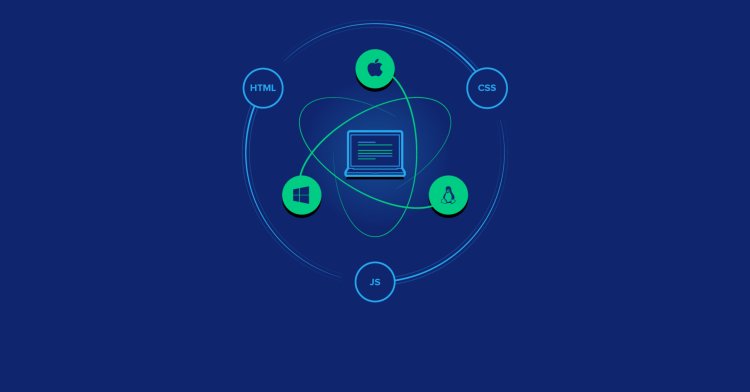
In today's digital landscape, web applications offer incredible flexibility and reach. But what if you want to extend your web app's functionality to desktop users? Enter Electron, the open-source framework that powers apps like Visual Studio Code, Slack, and Discord. Electron allows you to package your web app—built with HTML, CSS, and JavaScript—into a native desktop application that runs seamlessly on Windows, macOS, and Linux.
This guide will walk you through converting web apps into cross-platform desktop applications using Electron. Whether you're a solo developer or leading a team, you'll discover the steps, tools, and best practices to get started.
What is Electron and Why Use It?
Electron is a framework for creating native apps using web technologies. It combines Chromium (for rendering) and Node.js (for backend capabilities) into a single runtime. Key benefits include:
- Cross-Platform Compatibility: Write once, run anywhere—no need for separate codebases.
- Access to Native APIs: Interact with file systems, notifications, and hardware via Node.js modules.
- Fast Prototyping: Reuse your existing web app code with minimal changes.
- Large Ecosystem: Thousands of npm packages at your disposal.
Compared to alternatives like Tauri (which uses Rust for lighter bundles), Electron excels in simplicity for web developers transitioning to desktop.
Prerequisites for Converting Your Web App
Before diving in, ensure you have:
- Node.js (v14+) and npm installed.
- A working web app (e.g., React, Vue, or vanilla JS).
- Basic knowledge of JavaScript and command-line tools.
Step-by-Step Guide to Building with Electron
Step 1: Set Up Your Electron Project
Create a new directory and initialize:
mkdir my-electron-app
cd my-electron-app
npm init -y
npm install electron --save-dev
Create main.js as your entry point:
const { app, BrowserWindow } = require('electron');

function createWindow() {
  const win = new BrowserWindow({ width: 800, height: 600 });
  win.loadFile('index.html');
}

app.whenReady().then(createWindow);
Step 2: Integrate Your Web App
Copy your web app's files into the project root. Update package.json to point to your web build:
"main": "main.js",
"scripts": {
  "start": "electron .",
  "build": "electron-builder"
}
For SPAs like React, build your app (npm run build) and load the dist/index.html in Electron.
Step 3: Package and Distribute
Install electron-builder:
npm install electron-builder --save-devRun npm run build to generate installers for all platforms. Customize with electron-builder.json for icons, auto-updates, and signing.
Best Practices and Optimization Tips
- Minimize Bundle Size: Use tools like webpack to tree-shake and compress assets.
- Handle Security: Disable nodeIntegration in renderer processes and use contextIsolation.
- Performance Tuning: Implement IPC for main-renderer communication; avoid heavy computations on the UI thread.
- Auto-Updates: Integrate electron-updater for seamless user experiences.
Common Pitfalls to Avoid
Watch out for large app sizes (Electron's Chromium is hefty—aim under 100MB with optimizations). Test on all OSes, as file paths and permissions differ. Also, ensure your web app handles offline scenarios gracefully.
Conclusion
Converting web apps into cross-platform desktop applications using Electron opens new revenue streams and user bases. With this guide, you're equipped to transform your project today. Start small, iterate, and leverage the vibrant Electron community on GitHub and forums.
Ready to build? Fork an Electron boilerplate and experiment!
Keywords: Electron framework, web to desktop app, cross-platform development.
What's Your Reaction?